Pay is set in one place: “Payroll” → the “Pay” tab. Here, for each person, you set the method by which their money is counted, the amount and the day the term takes effect. There are five methods: “Per hour”, “Per shift”, “Monthly salary”, “Shift price” and “Unpaid”. A term is assigned to a person, not to a position or the organisation: two baristas can have different rates.
Until pay is assigned to a person, their shifts in the “Payroll” section are counted without money: the panel shows hours and the number of shifts, and instead of an amount there is a dash and the note “Not set”. This is not zero, it is “we do not know the price”.
Pay can be assigned and changed by the owner, co-owners and anyone whose role has the “Change pay” permission, and only for the people they manage: people of their own locations whose role has fewer rights. Nobody changes their own pay except the owner; a co-owner’s pay is changed by the owner. Anyone with only “View payroll” sees the amounts but cannot change them.
Where to find it
“Payroll” → the “Pay” tab → the “People” switch. A list of everyone who works, grouped by position, with the current term in the “Pay” column, for example “120 £/hr” and “from 1 September”, or “Not set”. The pencil in the row opens the term window.
Above the list is a status bar: “No pay set N” with the caption “their shifts count without money” and “No payout details N”. Click a tag, and the list narrows to those people.
In the person’s card: “Employees” → the card → “Edit” → the “Pay” block. It only shows whether pay is assigned or not, and the “Open” button leading here: “Pay is set in one place: Payroll, the Pay tab. Here it is only shown.”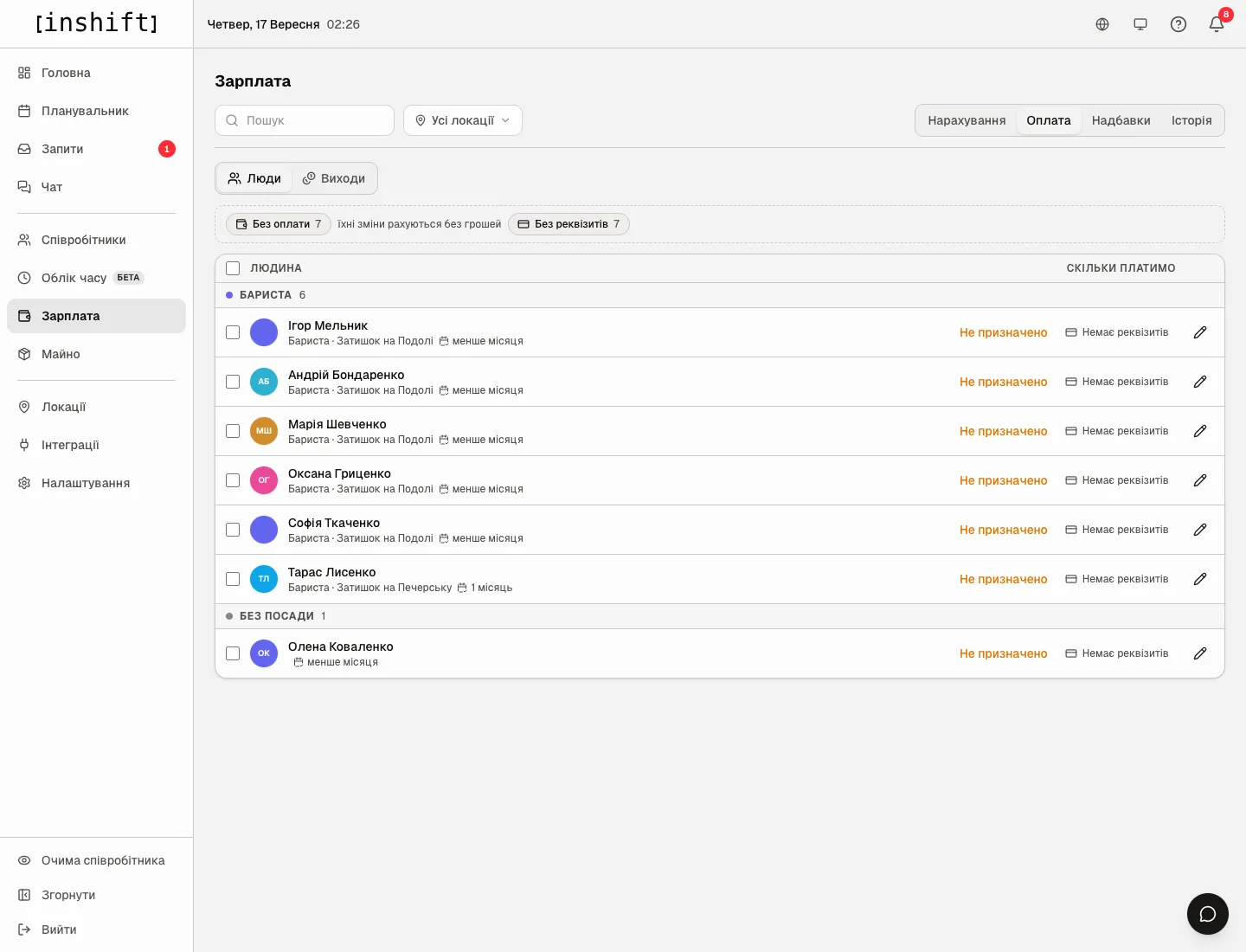
Step by step: assign pay to one person
- On the “Pay” tab click the pencil in the person’s row. A window opens with their name, position, location and length of service: “With the team since 16 September 2026 · less than a month”. If the start date is not filled in, it says “Start date is not set”.
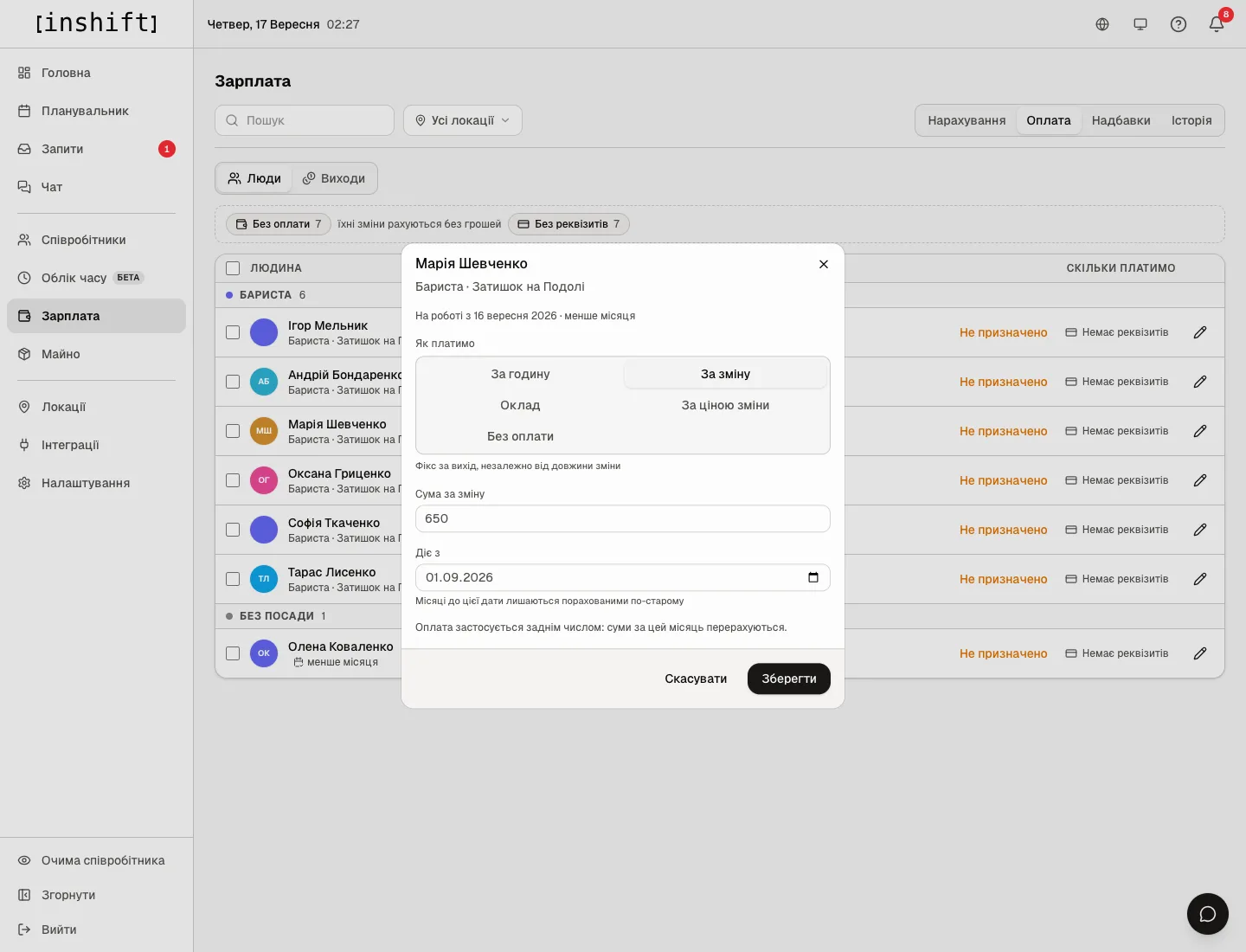
The pay term window: “How we pay” with five methods, “Amount per shift”, “Effective from” and the recalculation warning - In the “How we pay” block choose a method. Under the buttons is a hint about what the amount below means, for example for “Per shift”: “Fixed amount per shift, whatever its length”.
- Type the amount. The field name depends on the method: “Hourly rate”, “Amount per shift”, “Monthly salary” or “Fallback price”. “Unpaid” has no amount field.
- Check “Effective from”. The panel suggests the first day of the current month. Under the field is a reminder: “Months before this date stay counted the old way”. If the date is earlier than today, below appears “This pay applies retroactively: amounts for this month will be recalculated.”, if today or later: “The new pay applies from the chosen day. Shifts before it use the previous one.”
- Click “Save”. “Saved” appears, and the person’s row shows the new term with its date.
Step by step: one term for several people
- On the “Pay” tab tick the rows of the people you need, or the tick in the list header to select everyone. Above the list appears “3 people selected” with the “Set pay” and “Clear” buttons.
- Click “Set pay”. The “Pay for 3 people” window lists the names and explains: “Each person gets their own terms with these numbers. You can edit anyone separately later.”
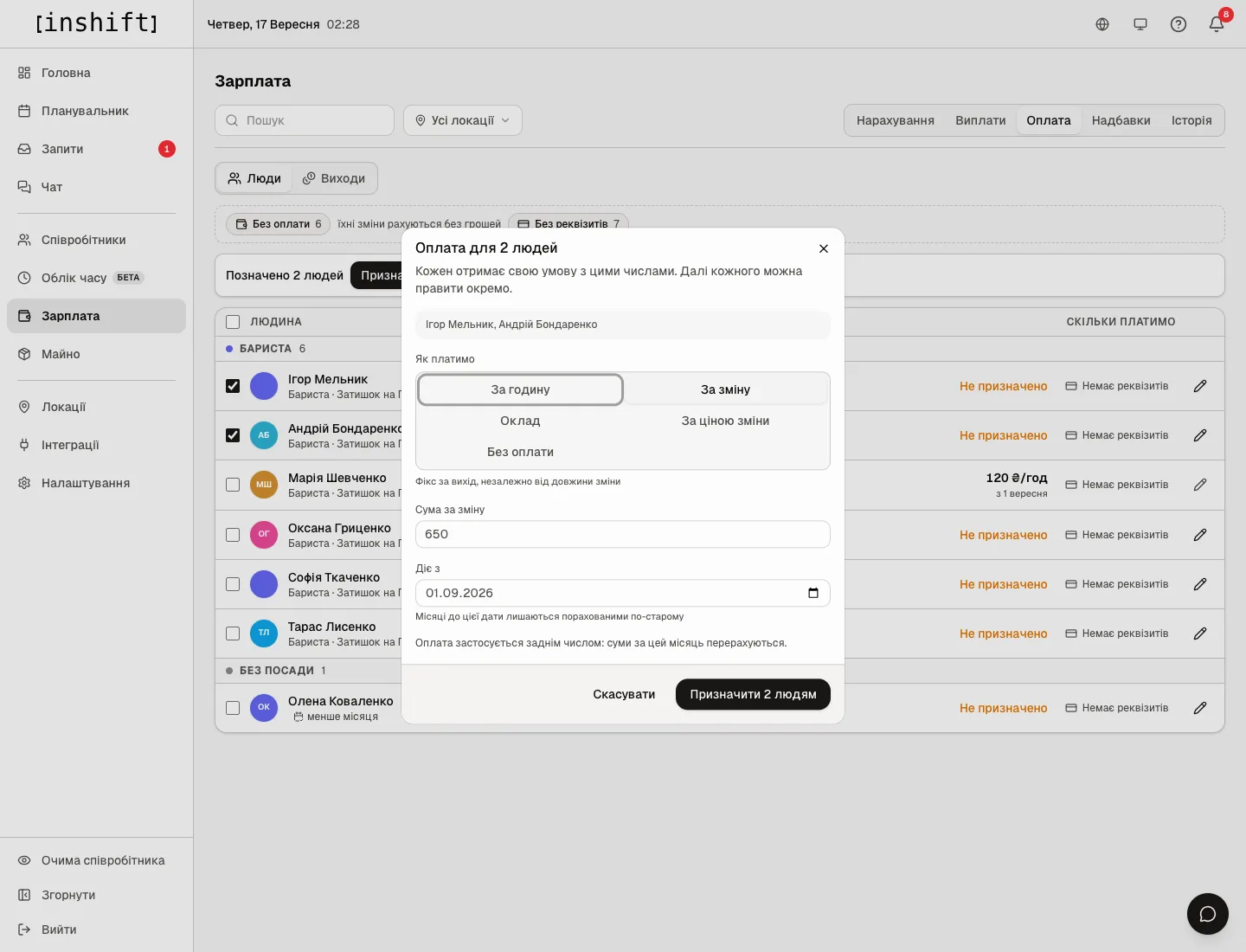
The “Pay for 2 people” window: names, method, amount, “Effective from” and the “Set for 2 people” button - Choose the method, amount and date just as for one person, and click “Set for 3 people”. The panel reports “Pay set for 3 people”. Each person gets a separate term, so later it can be changed for just one of them.
The five methods
“Per hour”: the shift hours are multiplied by the rate. A 08:00-20:00 shift at £120 per hour gives £1,440.
“Per shift”: a fixed amount for each shift worked, a short and a long shift cost the same.
“Monthly salary”: an amount per month. Next to it is the “Shifts per month” field: how many shifts count as a full salary. An empty field means “From schedule”: however many shifts are put in the month, that many make the full salary. If a quota is named and the person worked fewer, they get a proportion: 20 shifts with a quota of 22 give 20/22 of the salary. Worked more than the quota, they get exactly the salary, and the extra work is paid by premiums, see Premiums: night, holiday, overtime and other extras.
“Shift price”: the person gets whatever the shift itself is worth. The price is set on a shift type at a location or on a particular shift, see Shift prices. The “Fallback price” field with the hint “Not needed” works where a shift has no price; without a fallback such a shift lands in “with no price” and counts as zero with a warning.
“Unpaid”: money is never counted. For an owner, a partner, a director who are in the schedule but do not get paid here. Their shifts do not hang as a “no pay set” warning next to those whose rate was genuinely forgotten.
Pay is counted by the schedule hours, not by check-in records: a 08:00-20:00 shift gives 12 hours even if the person checked in at 08:10. The records are shown in a separate “Checked in” column for comparison when time tracking is on. Only published shifts count: drafts are not included in the money.
Changing pay, history and deletion
Open the pencil in the person’s row: under the fields in the window is the “Pay history” block with all terms from newest to oldest. Each row has the amount, “from 1 September 2026”, who set it, the “in effect now” mark on the current one and “Rate was set for a day that was already settled” next to one that overwrote days already paid.
Raise the rate: add a new term with the date it takes effect. The old one stays in the history, and months before the date are counted by it. So a raise from 1 October does not change September.
Made a mistake: the bin next to a row in the history deletes the term entirely, and the days from its date are recalculated by the term that was in effect before it. This is for mistakes, not for cancelling an agreement.
Why an action is unavailable
There is no “Pay” tab: your role does not have the “Change pay” permission. With “View payroll” the section shows amounts but does not change terms; with “Pay out wages” it records payouts but does not change terms either.
Saving says “Nobody pays out or changes their own pay except the owner. Ask a manager above you or the owner”: this is your own pay term.
Saving says “This person has as many rights as you or more, so their pay is handled by a co-owner or the owner. Ask them”: the person’s role is equal to or above yours. “Only the owner sees and changes a co-owner’s pay”: this is a co-owner.
There is no “People” and “Shifts” switch: the switch appears for those who can see payroll. Without “View payroll” only the list of people is visible.
A person is missing from the list: they are dismissed or filtered out: check “All locations” and the search. A person with the “Not scheduled” switch in their card is in the list: pay can be assigned to them.
Above the list, “N shifts will be paid nothing”: someone has the “Shift price” method, and the shift has no price and no fallback either. Click the tag, it leads to the “Shifts” switch where a price can be set.
The note “Prices are not paid to anyone yet”: shift prices are set, but the “Shift price” method is not assigned to anyone. The prices sit idle until you assign this method.
“legacy rate from profile” in a row: the rate was set in the person’s card before this section existed. It works as “Per hour”, and it can be changed here.
Questions and answers
Can I set one rate for a whole position?
No, a term is always per person. Tick everyone in the position and assign one term to all of them at once, then anyone can be edited separately.
What happens if I change the method mid-month?
Days before the “Effective from” date are counted by the old term, from the date by the new one. The month shows both parts.
Does the person see their rate?
Yes, if the “View payroll” permission in their role is not set to “None”. In the app, on the stats screen, they see “Accrued” for the period and what the amount is made of: shifts, premiums, bonuses. There are no payouts or debt in the app, and they do not see other people’s terms.
Why does the row say “Not set” although the card shows a rate?
The card only displays. Open “Pay” and assign a term: that is what counts the money.
How do I make the owner’s money not count?
Assign “Unpaid” to the owner. Their shifts stay in the schedule, and in payroll they count as zero without warnings.
If a person has several pay terms, which one applies?
One pay applies to a shift, terms do not add up. A new term is not added to the old one, it replaces it from the “Effective from” date; days before it are counted by the old one. While a person is a trainee, they get only trainee pay, and their own term stays silent. Premiums come on top of pay, see Premiums: night, holiday, overtime and other extras.
Can I change my own rate?
No, unless you are the owner. Nobody pays out or changes their own pay: ask a manager above you or the owner.