Worked hours for a period are visible in the “Payroll” section: when time tracking is on, the statement has “Checked in” next to the “Scheduled” column. So the plan and the fact for a month, half a month or any stretch are compared in one row for each person and for the whole team.
Money is still counted by the schedule. The “Checked in” column only shows how long the person was on site by the marks, so the manager can see the difference and decide what to do about it: correct the shift in the planner or the mark on the board.
The statement is seen by the owner, co-owners and anyone whose role has “View payroll”. Marks can be corrected by anyone with “Manage time tracking”.
Where to find it
“Payroll” → the “Accruals” tab → the “Checked in” column. The period is chosen at the top: a month, “1-15”, “From 16” or arbitrary dates, see Accruals: reading the payroll statement.
By day, for one day: “Time tracking” → “Board” → the date.
For the person themselves: in the app “Check in” → “My check-ins”.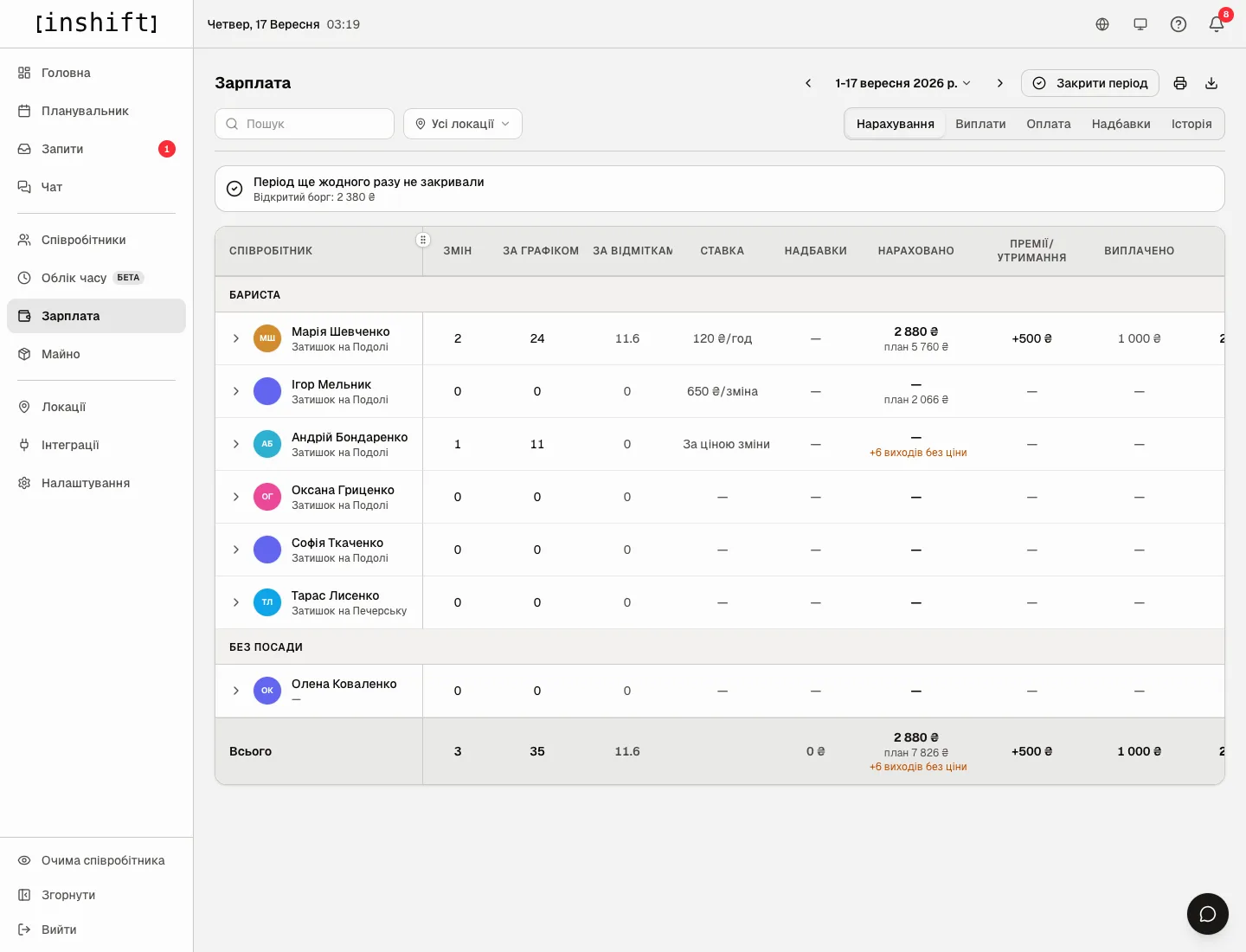
How hours by marks are counted
An hour by marks is the time from arrival to departure minus the break. A 08:05-20:10 shift with a 30-minute break gives 11.6 hours. Closed shifts by marks count, including those entered or corrected by the manager by hand on the board.
A shift the person did not close is not in the column until it is closed by auto-closing, four hours after the shift’s scheduled end, or by the manager. Auto-closing sets the shift’s scheduled end or a zero length, so after it the hours are worth checking on the board, see The board: who is on site right now.
Marks without a shift in the schedule count too: a person called in without a shift gets hours under “Checked in”, and zero under “Scheduled”.
The “Total” row at the bottom sums both columns across everyone in the list.
Step by step: compare plan and fact for a month
- Under “Payroll” choose the period, for example “Whole month”, and if needed a location under “All locations”.
- Compare “Scheduled” and “Checked in” in the person’s row. A difference downwards: the person came later or left earlier than scheduled, or did not clock in. A difference upwards: they stayed late or worked without a shift.
- To see which days the difference is made of, open “Time tracking” → “Board” and page through the dates: each row has “Scheduled” and “Checked in” side by side.
- Decide what to correct. If the person really did work differently from the schedule and should be paid for the fact, correct the shift in the planner: the amount is recalculated. If a mark is wrong, correct it on the board.
- Print and export of the statement take the “Checked in” column along with the others: the “Full sheet” on paper and the “Export to Excel” file.
Why an action is unavailable
There is no “Checked in” column: there is no closed shift by marks in the period. The module switch does not hide the column: after time tracking is turned off, recorded marks still show in the statement.
The column shows zero although the person clocked in: their shift by marks is not closed yet. The location filter does not affect this: the person’s row has their hours from every location.
Hours by marks are more than the schedule, but the amount has not changed: money is counted by the schedule. To pay for the actual hours, change the shift time in the planner.
I cannot correct the hours: your role does not have the “Manage time tracking” permission, marks are corrected on the board by whoever has it.
Questions and answers
Can we pay by marks instead of by the schedule?
No, payroll is counted by the schedule. Compare the columns and correct the shifts in the planner where the fact differs: that way the amount matches the work done, and the decision stays with you.
Is the break included in the hours?
No, the break minutes are subtracted. The person clocks the break on the terminal or in the app, and the manager can enter it by hand in the correction window.
Does the person see their hours by marks?
In the app they see the list of their marks under “My check-ins”. Under “Stats” the hours are shown by the schedule.
Which period can be viewed?
Any: the statement is limited only by the date from which time tracking is on and there are marks.