Time tracking is clock-in and clock-out marks. At the location there is a device showing the InShift screen, on which a code changes every 30 seconds. The person points their app’s camera at the code, and the arrival is recorded. Anyone without a phone clocks in on the same screen with a staff number and a PIN. There is nothing to buy: any tablet or the manager’s phone with a browser works as the terminal.
This is a module: while it is off, the section exists neither in the panel nor in the app. The owner or a co-owner turns it on in the organisation settings. Money is still counted by the schedule after it is on, and the marks are shown next to it for comparison.
The “Time tracking” section is seen by the owner, co-owners and anyone whose role has the “Manage time tracking” permission. The ready-made roles do not have it: the owner or a co-owner turns this permission on separately.
Where to find it
Turn on: “Settings” → the “Modules” tab → the “Time tracking” switch.
Terminals and PINs: “Time tracking” → the “Terminals” and “Without a phone” tabs. While the module is off, the owner and co-owners see “Time tracking” in the menu with a placeholder and the “Turn the module on” button, the rest of the team does not see the section.
On the device: the page terminal.inshift.app.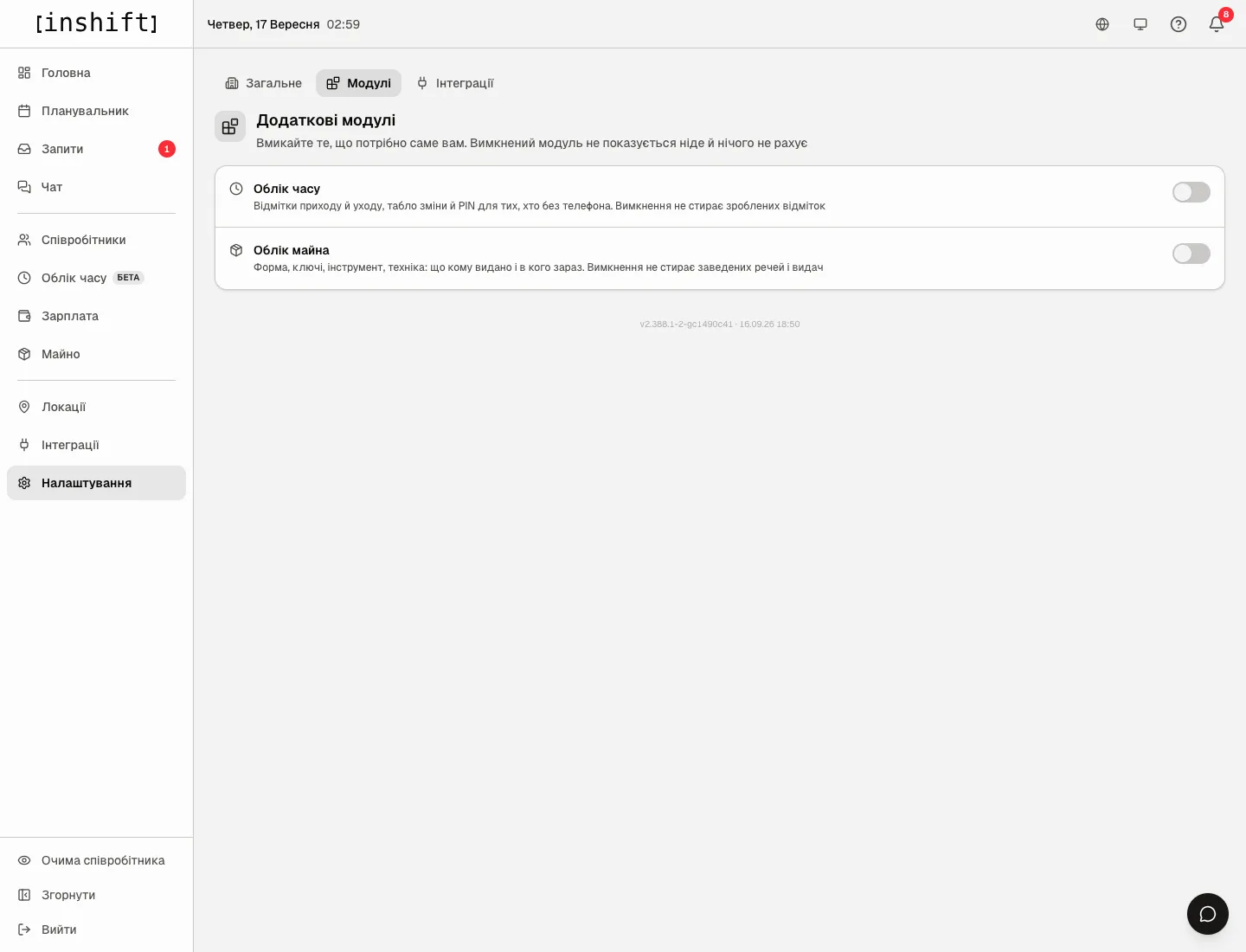
Step by step: turn the module on
- Open “Settings” → “Modules”. The “Time tracking” card says: “Clock-in and clock-out marks, a live board and a PIN for anyone without a phone. Turning it off does not erase past marks”.
- Turn the switch on. The “Time tracking” section appears in the menu, and the team’s app gets the “Check in” button on “Home”.
- It can be turned off at any time with the same switch. The panel asks “Turn off “Time tracking”?” and says what stays: “Nothing recorded is erased: 120 marks stay in the database and in the report.”, “The section disappears from your menu and from the employee app, and reminders stop.”, “You can turn it back on at any time and everything returns as it was.” Click “Turn off”.
Step by step: set up a terminal
- Open “Time tracking” → “Terminals” and click “Add terminal”. In the “New terminal” window type the “Name”, for example “Tablet by the door”, choose the “Location” and click “Add terminal”. One terminal belongs to one location: the code on its screen clocks people in at that location.
- The terminal’s card shows the “Pairing code”: eight digits and the hint “Enter this code on the device. Valid for 15 minutes”. Below are three steps: “On the device, open” terminal.inshift.app, “Enter the code, or send the device a link with the code: it pairs on its own.” with the “Copy link” button, and “From then on people clock in with the app by scanning the code on the screen. Without a phone: the “Without a phone” button on the terminal, staff number and PIN from the next tab.”
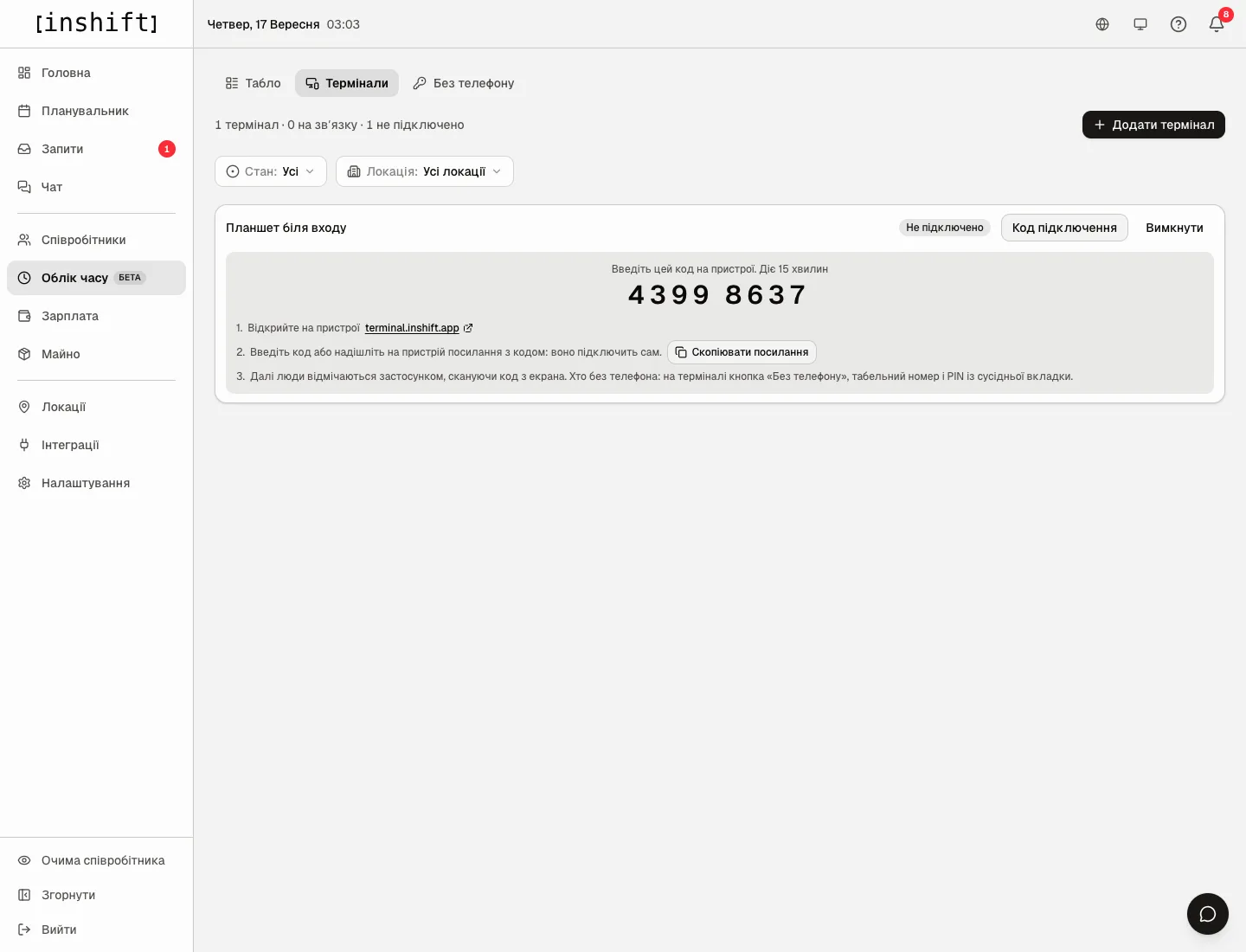
The “Tablet by the door” terminal card: the “Not paired” status, the pairing code and three steps - On the tablet open terminal.inshift.app in the browser. On the “Terminal pairing” screen with the hint “Enter the code shown in the manager’s panel” type the eight digits on the keypad. Or send the copied link to the device: it opens the page, pairs on its own and sets the terminal to the language of your panel.
- After pairing, the screen shows the location name, a clock and a large code with the caption “Point the app camera at the code”, and at the bottom the “Without a phone” button. The code refreshes every 30 seconds, the bar under it shows how long is left. While the page is open, the screen does not go dark. The terminal speaks English, Ukrainian and Russian: the globe button next to the clock switches the language, and the device remembers the choice.
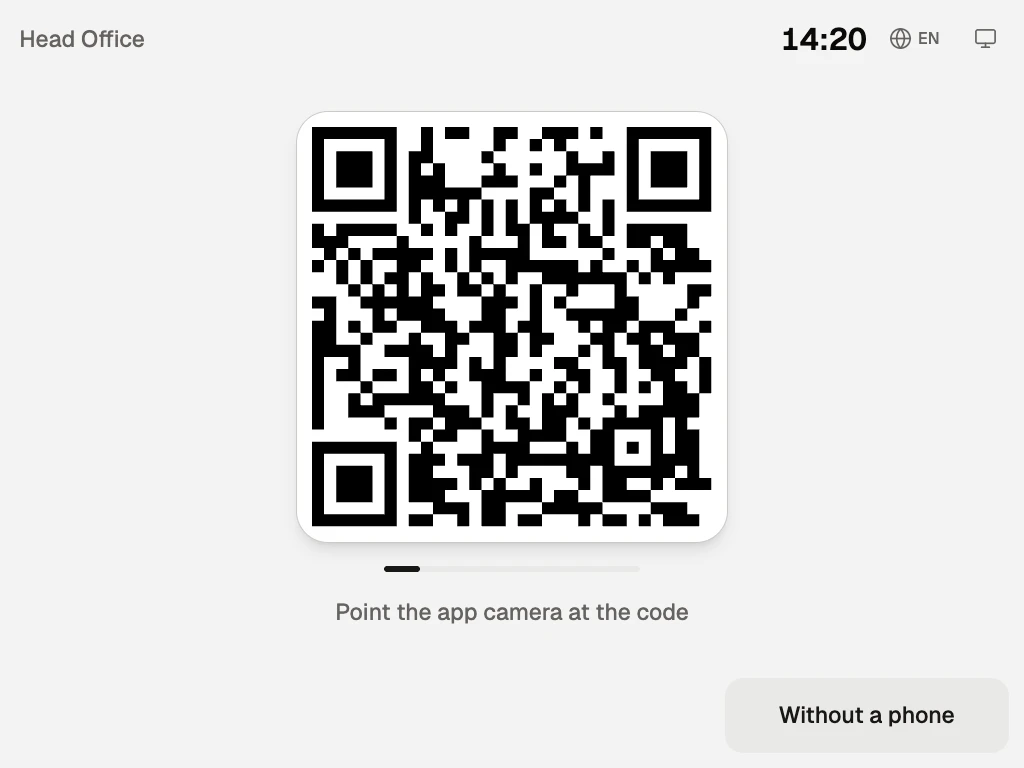
The terminal screen: the location name, a clock, the code to scan and the “Without a phone” button - In the panel the terminal’s status changes to “Online”. If the code was not entered within 15 minutes, click “Pairing code” again: the panel issues a new one.
Mount the tablet by the entrance and leave the page open. If the device does not get in touch for a long time, the status becomes “Offline” with the caption “Last seen 2 h ago”. The “Disable” button in the card stops the terminal: its code stops working and the status is “Disabled”. Disabling unpairs the device, so after “Enable” the status is “Not paired”: click “Pairing code” and enter the new code on the device.
How people clock in
With a phone: in the app “Home” → “Check in” → “Check in”, point the camera at the terminal’s code. The same for leaving and breaks. In detail in Clock in at your shift.
Without a phone: on the terminal the “Without a phone” button → the “What would you like to do?” screen with the buttons “Clock in”, “Clock out”, “Start break”, “End break” → “Staff number” with the hint “Issued by your manager” → “Your PIN” → “Next”. The terminal replies “Clocked in, have a good day” with the name and time, or “Clocked out, goodbye”. On the first login with a temporary PIN the terminal asks “Choose your PIN”: “At least six digits. Your manager cannot see it”.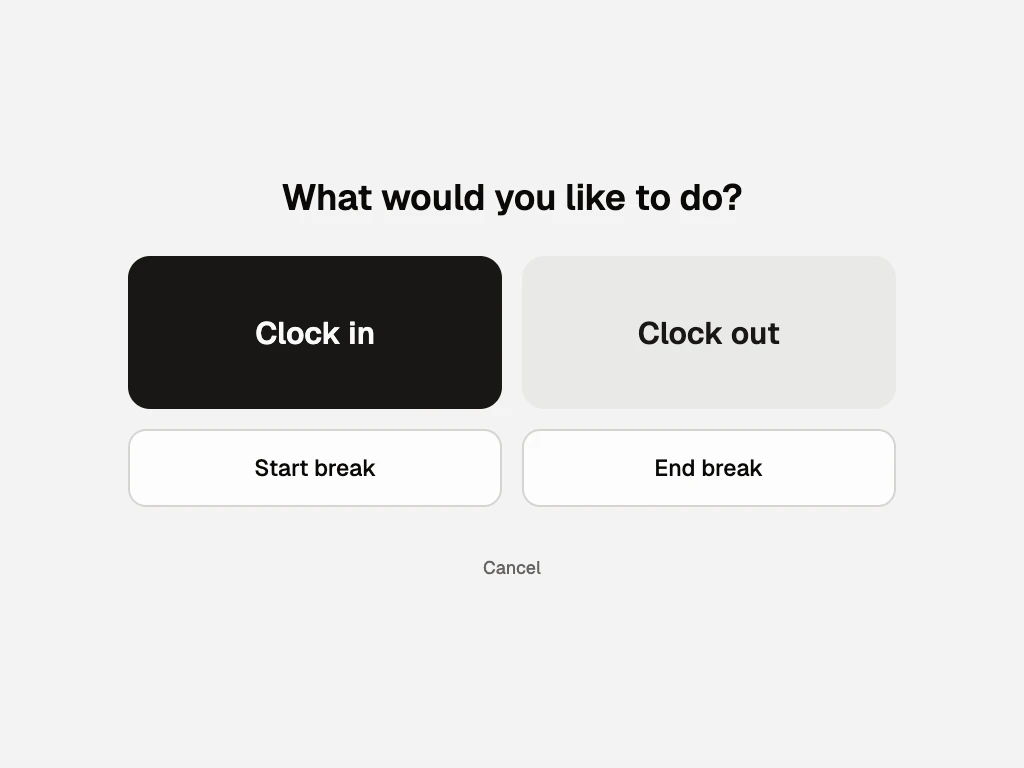
Step by step: staff numbers and PINs
- Open “Time tracking” → “Without a phone”. At the top is a summary, for example “7 people · 7 without a staff number · 7 without a PIN”.
- Click “Issue staff numbers (7)”. The panel hands out numbers to everyone who has none, in order, starting from 1001. The number is shown in the person’s row and in the “Name or number” search.
- In the person’s row click “Issue PIN”. A card appears: “Give it to the person. Shown once: after that nobody sees it, including us” with the number and the six-digit PIN, and the row gets the “Temporary PIN” mark.
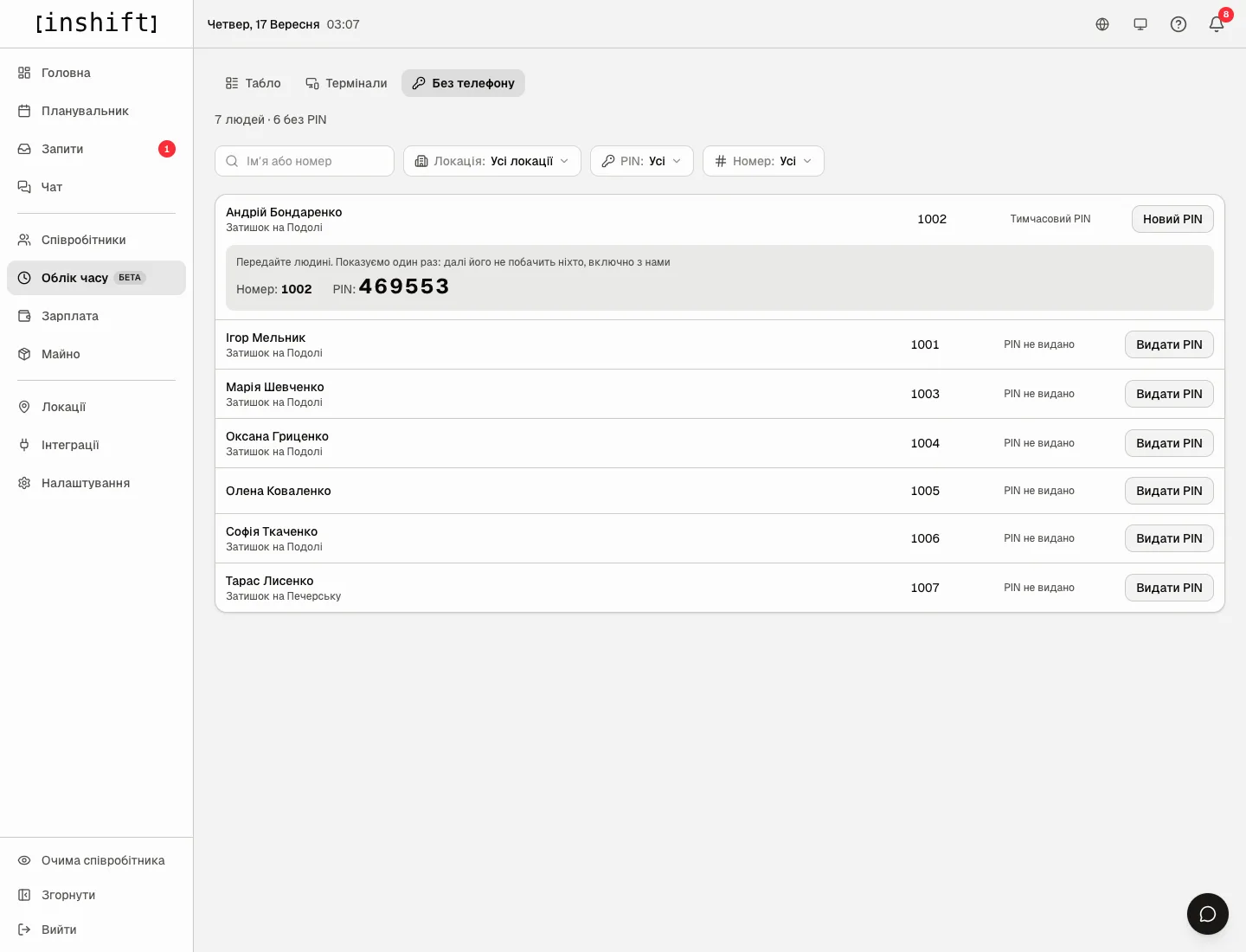
The “Without a phone” tab: numbers 1001-1007, the card with an issued PIN and the “Temporary PIN” mark - Give the person the number and the PIN. At the first clock-in the terminal asks them to create their own PIN, after which the row says “Own PIN”. You do not see it.
- The person forgot the PIN: click “New PIN”. The panel issues a new temporary one, the old one stops working.
Filters at the top: “Location”, “PIN” (“All”, “No PIN”, “Temporary PIN”, “Own PIN”) and “Number” (“All”, “No number”, “Has number”).
Why an action is unavailable
There is no “Time tracking” section in the menu: the module is off and you are neither the owner nor a co-owner, or your role does not have the “Manage time tracking” permission.
The section shows a placeholder saying “The module is off. The owner or a co-owner can turn it on”: ask the owner or a co-owner to turn the module on under “Settings” → “Modules”.
The terminal says “The code is wrong or has expired. Ask for a new one”: 15 minutes have passed or the code has already been used. In the panel click “Pairing code”.
The terminal says “No connection to the server”: check the internet on the device.
The terminal says “Wrong number or PIN”: check the number on the “Without a phone” tab and issue a “New PIN” if the person forgot it. After several failed attempts the terminal says “Too many attempts. Try again in N min”.
The terminal says “Clock in first”: the person pressed “Clock out” or “Start break” without clocking in.
The person has no “Check in” button in the app: the module is off or the app has not been updated for a long time.
Questions and answers
Is a separate device needed?
No. Any tablet or phone with a browser will do, including the manager’s old phone. The main thing is that the page terminal.inshift.app stays open.
Can one terminal serve several locations?
No, a terminal is tied to a location. Each location has its own device and its own terminal in the list.
Does the manager see a person’s PIN?
The temporary one, yes, once when issuing it. The own PIN the person created on the terminal is seen by nobody.
Does time tracking change payroll?
No. Money is counted by the schedule, and the hours by marks are shown next to it in the “Payroll” section for comparison, see Worked hours for a period.
What if a person forgot to clock out?
It does not break anything: the forgotten shift closes itself four hours after the shift’s scheduled end, and it can be corrected by hand on the board, see The board: who is on site right now.