A manager can see and correct the team's clock-ins right in the app: who is on shift, who has not clocked in, who asks to fix a time. From the phone you can clock a person in or out, add a missed shift, fix or remove a record, and accept or decline an employee's request. No shift in the rota is needed for this.
Team clock-ins are visible to people whose role has “Manage time tracking” on “My locations” or “Entire network”, and to the owner and co-owners. Of the ready-made roles these are “Shift lead”, “Manager” and “Director”. The “Time tracking” module must be on. The limits are the same as on the “Board” in the panel: you see everyone at your locations, and can clock in and edit those with fewer permissions than you, see the article Roles and access.
Where to find it
“More” → “Team clock-ins”. Or “Home” → the “Check in” tile → “Team” at the top.
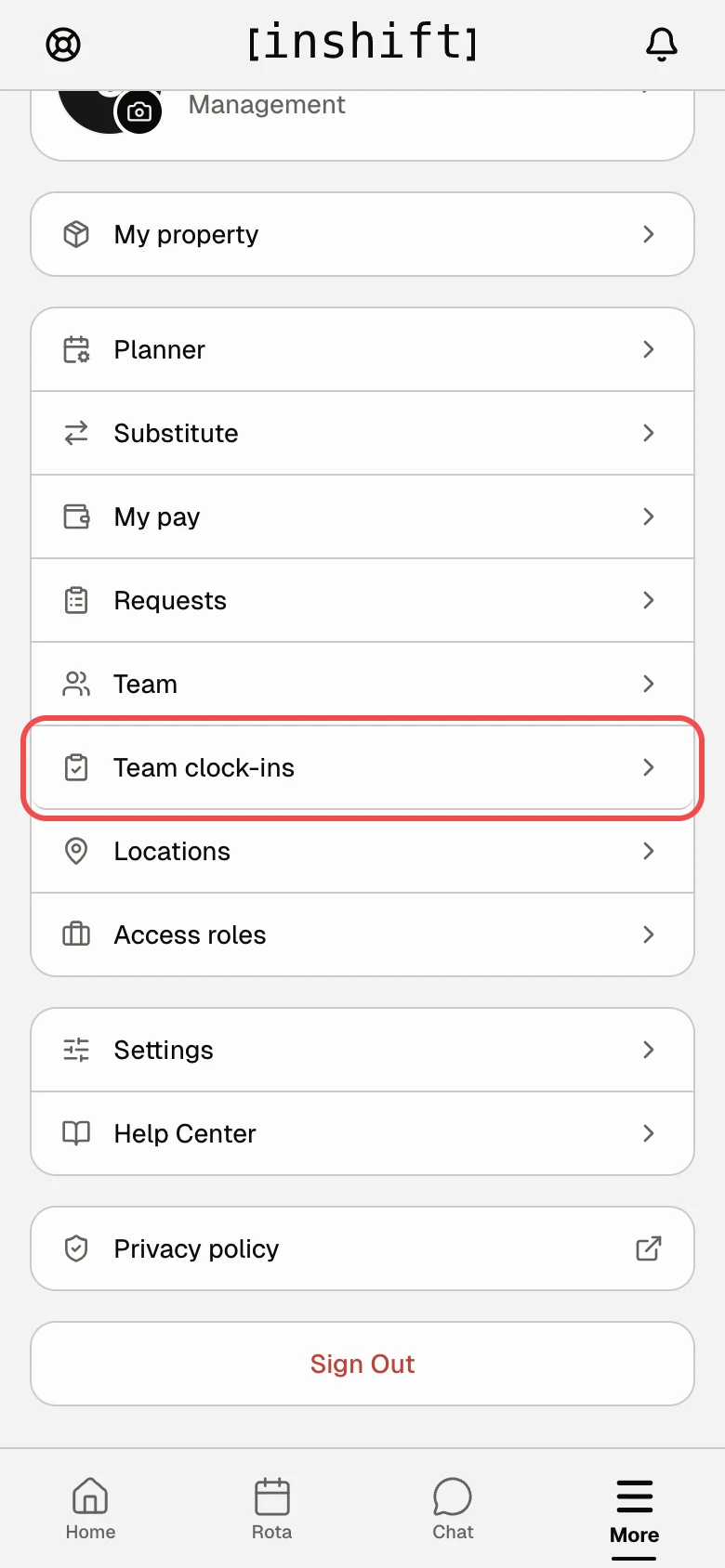
The “Check in” tile is always on the manager's home screen while time tracking is on, even on a day without a shift of your own. At the top of the page is the switch “Mine” and “Team”: in “Mine” you clock in yourself, in “Team” you manage your people. While your shift today is not over or you are on shift, the tile opens “Mine”, otherwise “Team”. An owner without an employee card sees only “Team”.
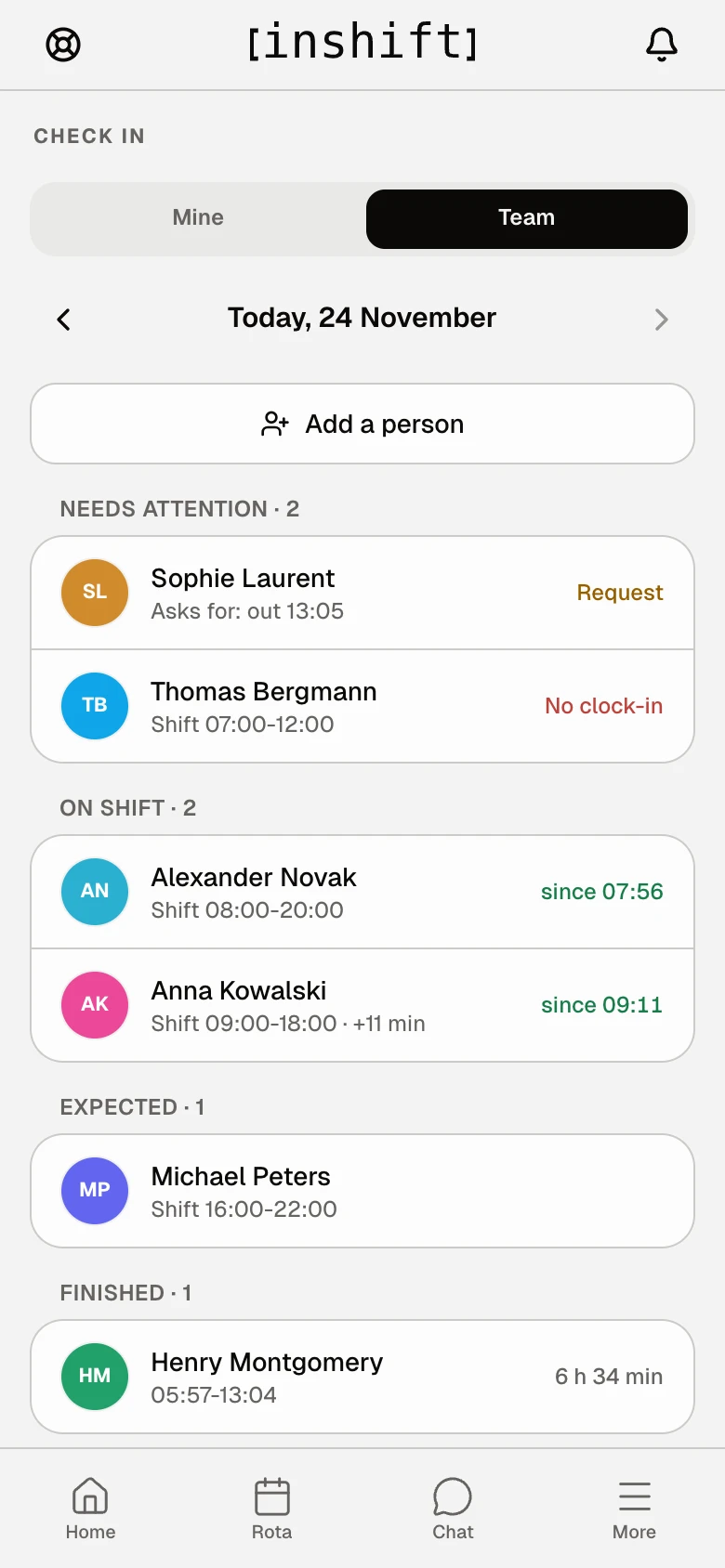
At the top is the day with the arrows “Previous day” and “Next day”, for example “Today, 24 November”, and under it the “Add a person” button. If there are several locations, you can pick one: “All locations” or a single one. Future days are closed, any past day can be opened.
What is on the screen
The people of the day are grouped into sections, each person in one:
- “Needs attention”: there is a request or a flag worth checking;
- “On shift”: clocked in and still working, with the time on the right, for example “since 13:58”;
- “Expected”: there is a scheduled shift, no clock-in yet, and the shift is not over;
- “Absent”: approved time off or sick leave with no clock-ins;
- “Finished”: clocked out, with the counted hours on the right.
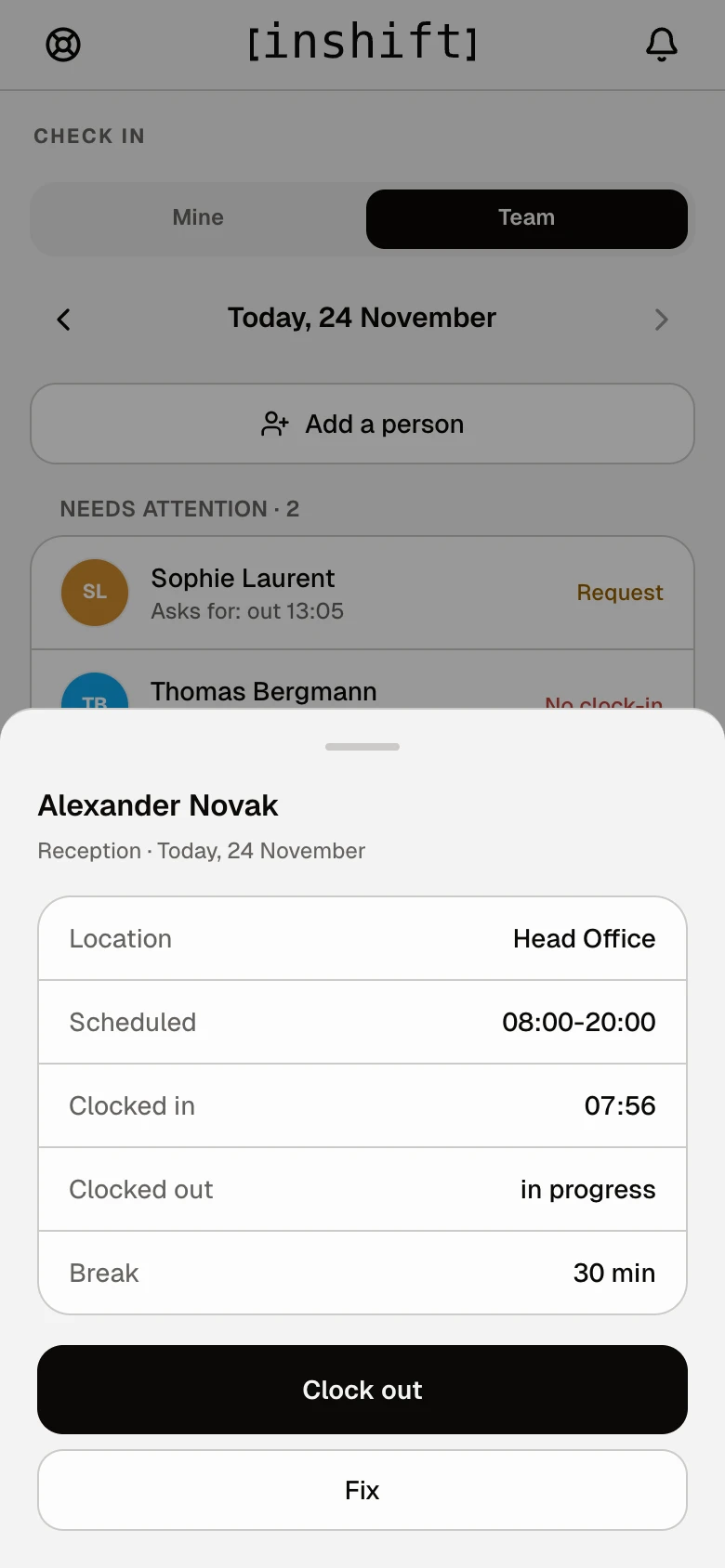
Tap a person to open their day: “Scheduled”, “Clocked in”, “Clocked out”, “Break”, “Counted”, “Location”. Below is every flag of the day in words with an explanation, and the action buttons. With no records it says “No clock-ins for this day”. Approved time off on that day is shown as a grey line, for example “Holiday”: it does not stop you from clocking the person in or adding a shift.
What the marks mean
- “Request” and “Asks for: out 20:00”: the person asks to fix a record and stands first.
- “No clock-in” (red): the scheduled shift is over and there is no clock-in.
- “Closed by system”: the person did not clock out and the system closed the shift: 4 hours after the scheduled end, or 16 hours after clock-in without a schedule.
- “Check”: something looks suspicious, for example the phone clock, another location or a repeat scan.
- “Missed break”: less break was recorded than the rules require, and auto break is off.
- “Awaiting confirmation”: the hours go to pay only after confirmation. Confirm them in the panel, in “Timesheet”.
- Grey “+11 min”: that many minutes after the shift start, it does not affect hours or pay. The grey label “Unscheduled”: the person clocked in without a shift in the rota, this is not an error.
- “Hours for this day are approved” in the card: this day can no longer be edited.
- “Employee says: left at 18:30”: the person entered themselves when they left.
Step by step: clock a person in or out
- Tap the person. Not in the list (came without a shift): “Add a person” → “Search by name” → the name. If you have several locations, the app asks “At which location?”. Next to the name you may see “Holiday” or “Sick leave” for that day in grey.
- Tap “Clock in” (no record yet) or “Clock out” (the person is on shift or on a break). When the shift is finished, this button is not there.
- Choose “Time”: “Now” (today only), “As scheduled” (if there is a shift) or “Other time”.
- Choose the reason, it is required: “Forgot phone”, “Terminal was down”, “No internet”, “Worked off-site”, “Clock-in mistake” or “Other” with the field “Describe the reason”.
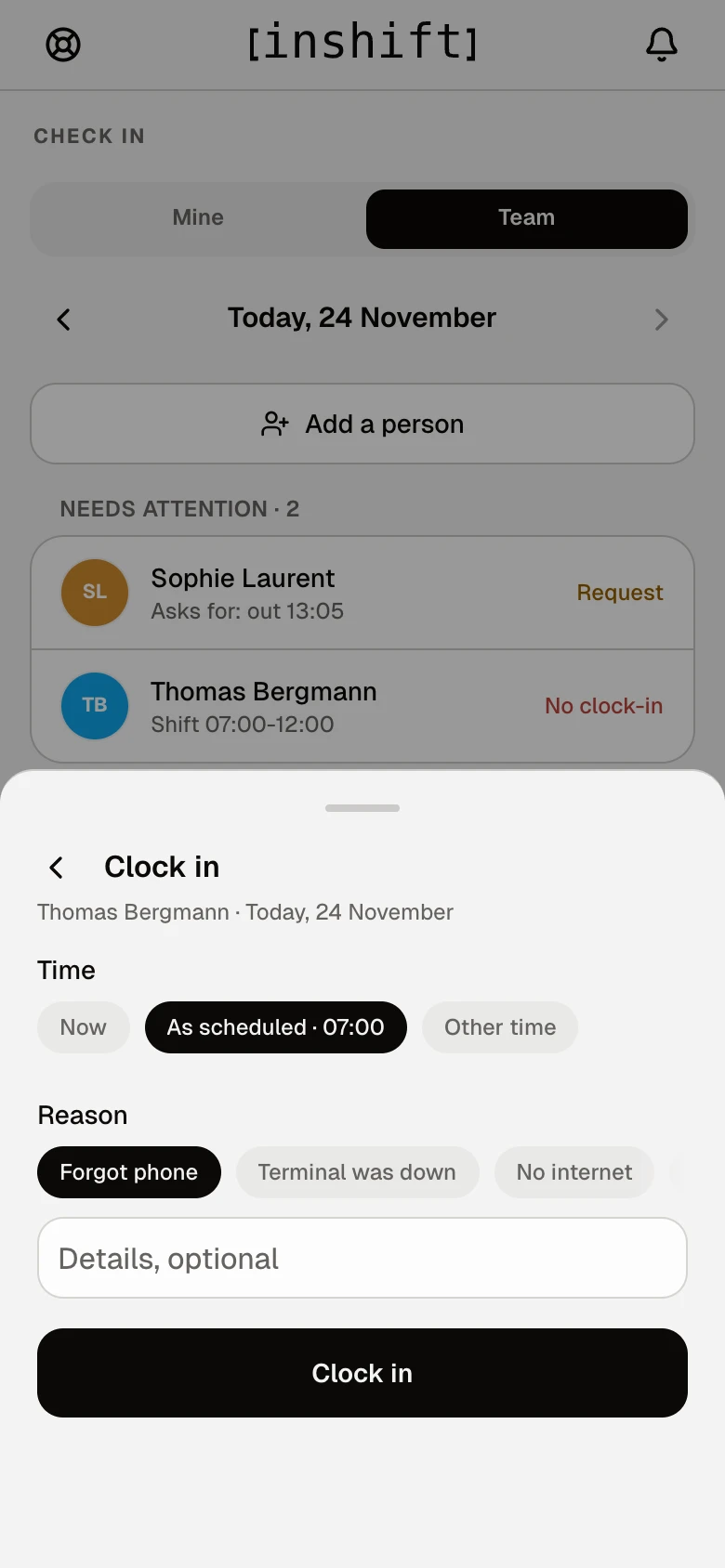
“Clock in”: the time “As scheduled · 07:00”, the reason “Forgot phone” - Tap the button at the bottom. The app says “Clock-in recorded” or “Clock-out recorded”.
It did not work: “Done 0, skipped 1” and the reason, for example “already clocked in”, “no scheduled shift”, “that time has not come yet”, “day is approved and cannot be edited”, “no permission to edit this person, or another location”.
While the window is open, the person was given a shift at another location: “This person was meanwhile given a shift at …: the clock-in will go there.” Check the location before you tap the button.
Step by step: add a missed shift
The person forgot to clock in for the whole day.
- Pick the day with the arrow and tap the person (or “Add a person” if they are not in the list).
- Tap “Add a shift manually”.
- Fill in “Clocked in” and “Clocked out”. An empty “Clocked out” means “Leave empty if the shift is still running”. When the shift is in the rota, “Clocked out” is already filled with its end and cannot be erased here: for a person who is still working use “Clock in”. If needed, “Break, minutes” and “Reason”, the reason is optional here.
- Tap “Save”. The app says “Shift added”, the timesheet shows “Entered manually”, and the person sees “manager edit”.
Step by step: fix or remove a record
- Tap the person, then “Fix”.
- In “Correct the shift” change “Clocked in”, “Clocked out” or “Break, minutes”. The reason is optional but stays in the log.
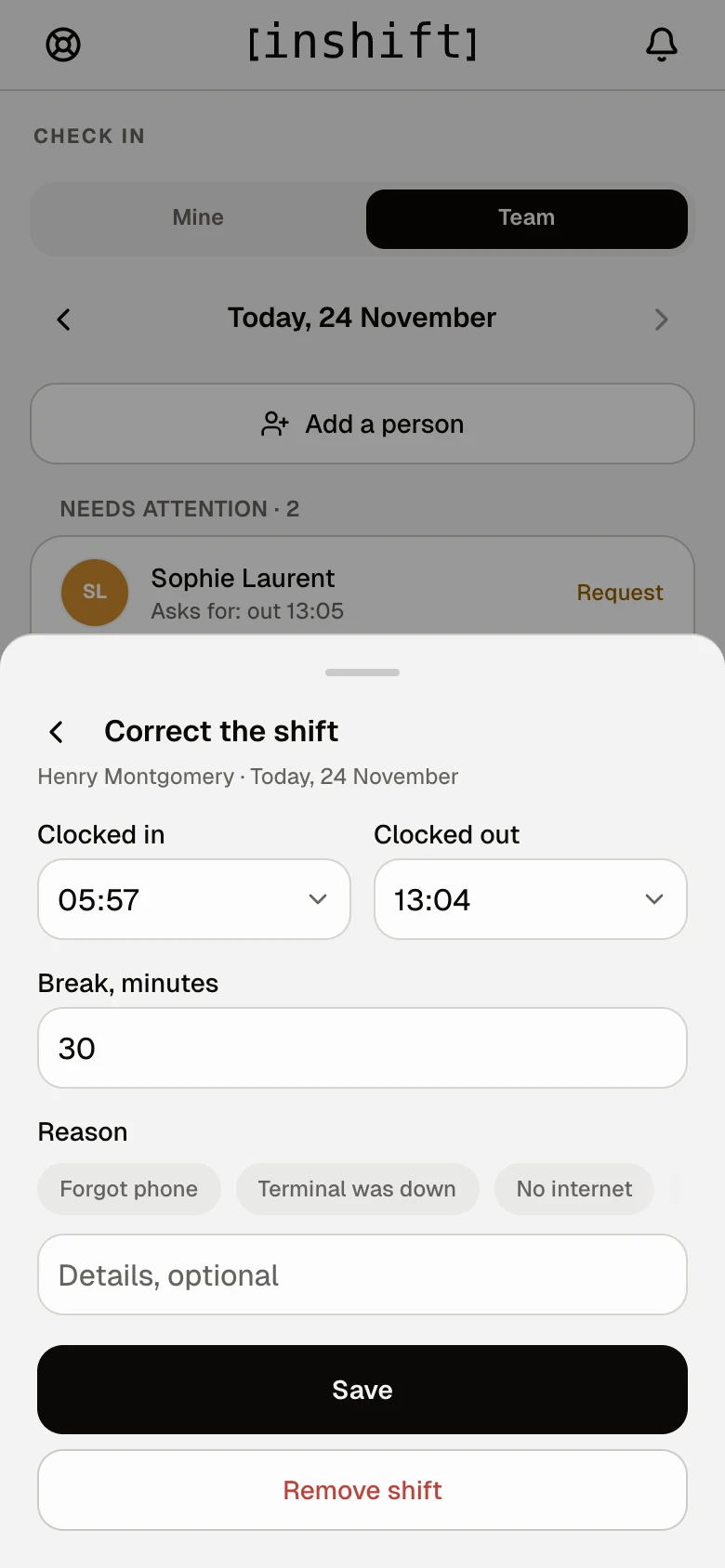
“Correct the shift”: “Clocked in”, “Clocked out”, “Break, minutes”, “Reason”, the buttons “Save” and “Remove shift” - Tap “Save”: “Record saved”.
To remove a wrong record: “Fix” → “Remove shift”. The app asks “Remove shift …?”: “The record goes away together with its hours. Who removed it and why stays in the log.” Then “Shift removed”.
Clocked out by mistake while the person is still working: “Fix” → tap “Clocked out” → “Clear”, the second row of the list → “Save”. The app asks “Clear “Clocked out”?”: “The shift will be open again until a clock-out is recorded. If there is none, the system closes the shift itself, as a forgotten one. Hours and pay are calculated after the clock-out.” Tap “Clear”.
Only the person's last record can be opened again: if there is already a later one, the window refuses and saves nothing. A break closed by the cleared clock-out does not go on: the person is back on shift. The system may close a shift from a past day by itself within an hour, so enter the right “Clocked out” time there instead.
Night shift: if “Clocked out” is earlier than “Clocked in”, it is the next day: “06:00 (+1 day)”.
The change overlaps another record: the window names it, for example “Overlaps 06:32-16:31 on the same day.”, and offers “Delete …” for the shorter of the two.
Step by step: accept or decline a request
- You get the notification “… asks to fix a time record”: tap it, and that person's request opens. Or find the person with “Request” under “Needs attention” on that day.
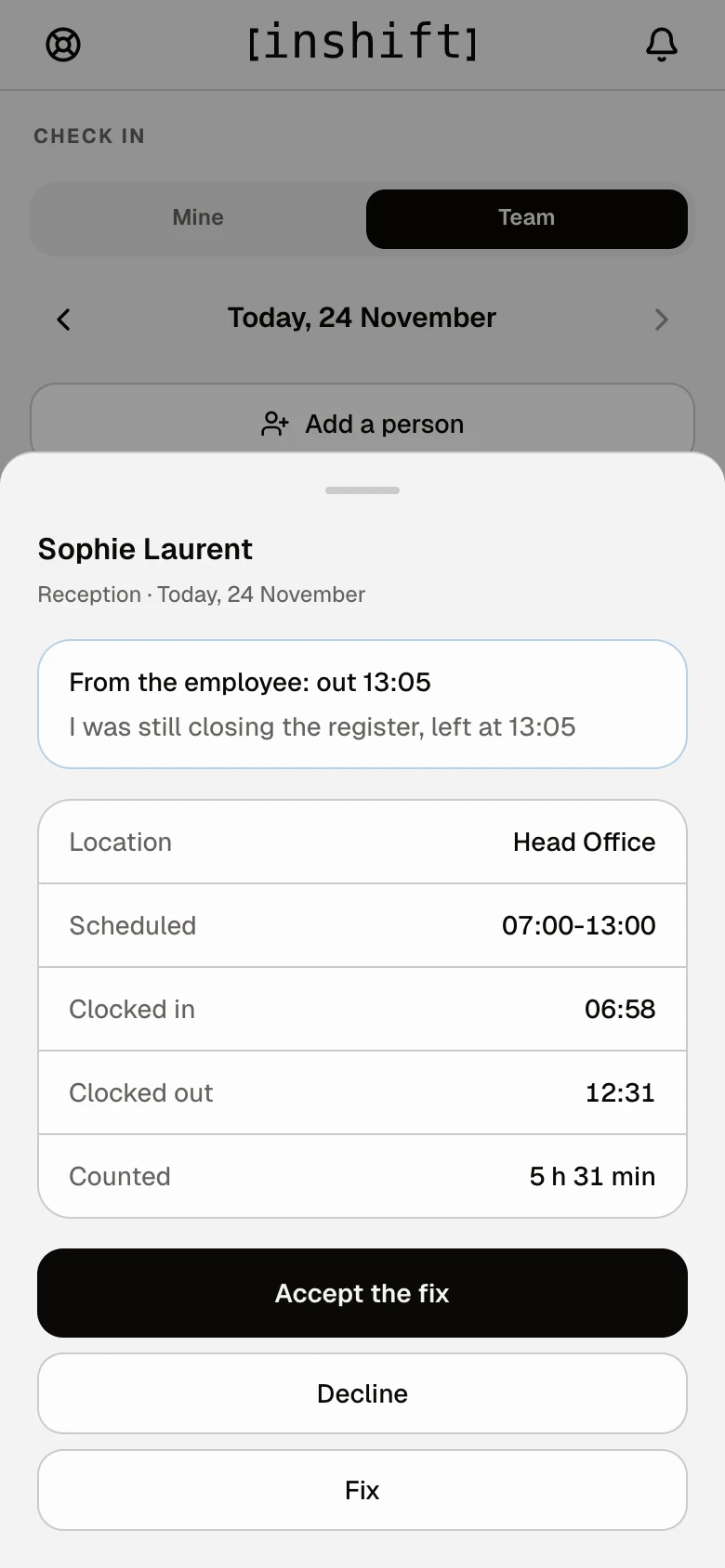
A person's request: “From the employee: out 13:05”, the buttons “Accept the fix” and “Decline” - Tap “Accept the fix”: the person's time is already in the fields and you can adjust it, but “Clocked out” cannot be cleared here. The reason is optional. Tap “Accept the fix” at the bottom once more: “Fix accepted”, and the person gets “Time record fixed”.
- Or “Decline”: in “Decline the fix” you can write “Reason for the employee” and tap “Decline” again. Hours stay the same, the person sees that the fix was declined and the reason.
Warnings under the time say that with the new arrival the record no longer belongs to its scheduled shift or moves to another one: check the time before accepting.
“The record changed after the request: check the day. It can only be declined or fixed by hand.”: the record was edited after the request.
Why an action is unavailable
No “Team clock-ins” line or “Team” tab?
Time tracking is off in the organisation, or your role does not have “Manage time tracking” at least on “My locations”. The owner or a co-owner changes the role.
Instead of buttons “Your own attendance is corrected by a manager above you or the owner. Ask them to fix it”?
It is your own record. In “Team”, as in the panel, your record is edited by a higher manager or the owner; only the owner edits their own there. Fix your own time from “Mine” → “My check-ins” → “Fix the time”: depending on the organisation's rules it is a request to the manager or an immediate change. If fixing is turned off, there is no button: tell a higher manager or the owner. See the article Fix your check-in or a forgotten check-out.
“Hours for this day are approved” and “The owner can reopen the period in the panel.”?
The day was approved when the period was closed in “Payroll”. Only the owner can reopen it, and only in the panel: “Time tracking” → “Timesheet” → “Reopen”. A request for such a day can still be declined.
The buttons are grey?
There is no connection, then “Internet connection required” is next to them, or the day is still loading.
No buttons at all?
This is the “Employee’s view” mode: it is for viewing only.
“No location is set, so there is nowhere to clock in. Add a location in the employee card.”?
The person has neither a shift nor a location in their card. Add a location to the card in the panel.
“no permission to edit this person, or another location”?
The person has the same permissions as you or more, or does not work at this location by their card and has no shift there that day. A higher manager or the owner can do it.
The person is not in “Add a person”?
For a manager of their own locations it lists only people who work there by their card. Someone from another location is in the day list when they have a shift at yours.
“The record was changed meanwhile. What you entered is kept: check it and save again.”?
While you were editing, someone else or the person changed the clock-in, the clock-out or the break. “Recorded now: …” shows what is there now, and if the break changed, “Break now: … min” is below it. Check it and save again.
“This entry was changed in the meantime and was not removed. Check if you still want to remove it.”?
You tapped “Remove shift”, but the record was changed meanwhile. Look at what it has now, and if it still has to go, tap “Remove shift” again.
“The record was changed meanwhile, your changes were not saved.”?
You closed the window before the answer came, and someone else had changed the record. The message names the person and the day: open the person, check the record and make your changes again.
“That entry was changed in the meantime. Try saving again.”?
You were deleting another record that your change overlapped, and it was changed meanwhile. Tap “Save” again: if the records still overlap, the window shows the new time.
“This person's clock-in has already appeared, so there is no need to add the shift again. Go back and check the day.”?
The person clocked in while you were adding the shift. Go back and check their day.
“This person's clock-ins have changed meanwhile. Go back and check the day.”?
The person clocked in or left while the window was open. Go back and check.
“This request was already decided or no longer exists”?
Another manager has already decided it, in the panel or in the app.
“This person already has an open shift. Close it first”?
You are adding a shift while another one has no clock-out. First “Clock out” or “Fix” that shift, then add the new one. The same happens when you clear “Clocked out” and the person has already clocked in again: enter the right clock-out time in the first shift, or remove the extra record first.
“The server did not answer, the changes may have been saved…”?
The connection broke while saving. Check the record before trying again.
Questions and answers
Where are team clock-ins in the app?
“More” → “Team clock-ins”, or “Home” → “Check in” → “Team”.
An employee forgot to clock in. How do I add their shift from my phone?
“More” → “Team clock-ins” → the day → the person → “Add a shift manually” → “Clocked in”, “Clocked out” → “Save”. If the person is still on shift, “Clock in” is enough.
A person came without a shift in the rota. How do I clock them in?
“Add a person” → the name → “Clock in” → “Now” or “Other time” and a reason. A scheduled shift is not required, the person gets the label “Unscheduled”.
How do I fix a clock-in from my phone?
A record of your person: “More” → “Team clock-ins” → the person → “Fix” → the new time → “Save”. Your own: “Mine” → “My check-ins” → “Fix the time”.
I clocked a person out by mistake. How do I make the shift open again?
“More” → “Team clock-ins” → the person → “Fix” → “Clocked out” → “Clear” → “Save” → “Clear”. There is no need to remove the shift and add it again.
I got a request to fix a time record. What do I do?
Tap the notification: the request opens. “Accept the fix” changes the hours, “Decline” leaves them as they were. In an old version of the app the notification opens the “Notifications” list: update the app or find the person in “Team clock-ins”.
Can I fix my own record?
Yes, from “Mine” → “My check-ins” → “Fix the time”. Depending on the organisation's rules the fix goes to the manager or is saved at once; if it is turned off there is no button, so tell a higher manager or the owner. In “Team” only the owner edits their own record, for others a higher manager or the owner does.
Can I clock everyone in at once from my phone?
No, in the app each person is clocked in separately. Several people are clocked in with one tap in the panel on the “Board”, see the article The board: who is on site right now.
What is only in the panel?
The timesheet for a period, “Confirm” for hours and overtime, “Credit from schedule”, time tracking rules, terminals, PINs, “Reopen”, clocking in several people at once, and “Start break” and “Back from break”: in the app a person's break is entered only as minutes, “Fix” → “Break, minutes”. See the article Timesheet: everyone's hours for a period.
Will the person see that I fixed their record?
Yes: “My check-ins” shows the new time with “manager edit”. A removed record disappears, and the panel's “History” log keeps who removed it.
Does it work without internet?
Clocking people in and editing do not: the buttons are grey with “Internet connection required” next to them. Your own clock-in in “Mine” works offline too and is sent by itself.